

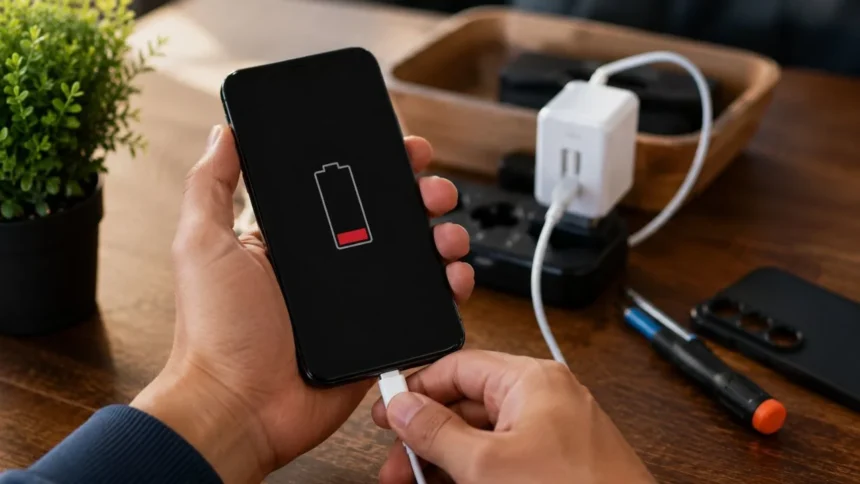
Few smartphone problems are more frustrating than watching the battery percentage fall even when you are barely using the device. A phone that previously lasted all day may suddenly require an afternoon charge, lose power overnight, or become warm while sitting in your pocket. Fortunately, rapid battery drain does not always mean that the battery has permanently failed.
Fast battery drain is commonly linked to high screen brightness, background applications, weak mobile signals, location services, software updates, intensive syncing, or heat. Battery consumption can also rise temporarily after setting up a new phone because applications, photographs, accounts, and system services are still being downloaded, indexed, and optimized. on depends on what is using the power. Turning off every useful feature may improve battery life, but it can also delay messages, stop backups, reduce navigation accuracy, and make an expensive smartphone less enjoyable. A better approach is to identify the cause and change only the applications or settings responsible for the unusual consumption.
This guide explains how to fix fast battery drain on iPhone and Android phones without relying on questionable battery-saving applications. It covers battery-usage reports, background activity, display settings, mobile signals, software updates, overheating, charging habits, battery health, and the warning signs that indicate professional battery replacement may be necessary.
Quick Answer: How Do You Stop a Phone Battery from Draining Fast?
Begin by opening your phone’s battery-usage screen and identifying the applications or system features consuming the most power. On an iPhone, open Settings > Battery. On many Android phones, open Settings > Battery > Battery usage. Menu names may differ slightly according to the manufacturer and software version. ng system and installed applications, restart the phone, and restrict unnecessary background activity for any application showing unusually high consumption.
Keep built-in optimization features enabled unless you are troubleshooting a specific problem. Google recommends keeping Adaptive Battery and application battery optimization active on supported Pixel devices. creen brightness, shorten the screen timeout, disable an unnecessary Always-On display, and use Battery Saver or Low Power Mode when necessary. Dark mode may reduce power consumption on OLED displays, while adaptive brightness can prevent the screen from remaining brighter than the surrounding environment requires. device is becoming unusually hot or struggling with weak network reception.
Heat accelerates power consumption, while poor mobile coverage can force the phone to work harder to maintain a connection. Persistent drain after these corrections may indicate an aging battery, damaged hardware, or an application-level problem requiring deeper troubleshooting. Battery Draining So Fast?
The display is often one of the largest power users because it remains active during browsing, video streaming, gaming, navigation, photography, and social media use. High brightness, long screen timeout settings, high refresh rates, live wallpapers, and an Always-On display can increase consumption, especially when several of these features are enabled simultaneously.
Applications can continue using energy after you leave them. Messaging services may check for notifications, social platforms may refresh feeds, cloud applications may upload photographs, and navigation apps may continue requesting location data. Battery reports can reveal whether an application has accumulated unusually high background activity compared with the time you actively used it. are another overlooked cause of poor smartphone battery life.
When cellular reception is weak or unstable, a device may use additional energy searching for and maintaining a usable connection. Hotspot use, large downloads, cloud restoration, high-definition video uploads, and extended navigation can also increase battery usage and device temperature. ally becomes important because lithium-ion batteries are consumable components. Their ability to hold energy gradually decreases through normal use, charging cycles, time, and exposure to heat. When available capacity has become significantly reduced, changing software settings may produce only a limited improvement, making battery service the more practical long-term solution. s Are Draining the Battery
Before changing multiple settings, review the battery report after using the phone normally for several hours. Look for applications consuming a large percentage despite receiving little active use. A navigation application used for two hours may reasonably appear near the top, but an unfamiliar application using substantial power in the background deserves closer attention.
On an iPhone, open Settings > Battery and review daily activity, screen-on time, screen-idle time, application percentages, and available battery insights. Apple allows users to examine usage across recent days, making it easier to determine whether the problem started after installing an application, changing a setting, or completing an iOS update. open Settings > Battery > Battery usage, select the application view, and examine individual entries.
Google generally recommends keeping applications on the Optimized setting. An application may be restricted when it is consuming excessive background power, although restricting it can delay notifications, syncing, uploads, or other expected functions. open Settings > Battery and device care > Battery and use optimization or background-usage controls. Samsung’s tools can identify applications with high background consumption and place rarely used apps into sleeping or deep-sleeping categories. Avoid restricting essential messaging, security, health, or work applications unless delayed background activity is acceptable. y Background Battery Usage
Background activity is necessary for applications that deliver messages, upload files, monitor connected accessories, or provide location-based services. The goal is therefore not to prevent every application from running. Instead, limit apps that consume power without delivering an important notification, backup, synchronization, or service that you regularly use.
Start by uninstalling applications you no longer need. An unused application can still receive updates, sync account information, send notifications, or activate background services. Also remove old accounts and profiles that continue synchronizing email, contacts, calendars, photographs, or cloud files even though you no longer actively use them. a, shopping, news, weather, fitness, and location-based applications carefully. Some may frequently refresh content or request location access. Change permissions from continuous location access to access only while the application is in use when that option still allows the application to function correctly.
Do not force-close every application repeatedly as a universal battery-saving strategy. Most modern mobile operating systems manage inactive apps automatically, and repeatedly reopening frequently used applications may not produce the expected improvement. Focus instead on confirmed high-drain apps, unnecessary synchronization, excessive notifications, and manufacturer-provided battery optimization controls.
Reduce Screen and Display Battery Consumption
Lowering display power usage can produce an immediate improvement because the screen is active during most smartphone tasks. Use adaptive or automatic brightness, or reduce brightness manually when the screen is brighter than necessary. Direct sunlight may still require a higher level, but maximum brightness is rarely needed indoors for extended periods.
Shorten the automatic screen-lock or screen-timeout period so the display does not remain active after you put the phone down. Thirty seconds or one minute is suitable for many users. A long timeout can waste a surprising amount of power when the phone is repeatedly left on a table with the screen illuminated.
Consider disabling the Always-On display when overnight or standby battery drain is a concern. Also reduce unnecessary wake features that illuminate the screen whenever notifications arrive or the phone moves. These functions are convenient, so begin with the least valuable one rather than turning off every lock-screen feature at once.
Android recommends settings such as a shorter screen timeout, reduced brightness, automatic brightness, fewer vibrations, and dark theme to extend battery life. Dark mode is most relevant to phones with OLED or AMOLED displays because black pixels can consume less display power than brightly illuminated content. Life When the Mobile Signal Is Weak
Weak cellular reception can drain a battery even when the screen is off. The phone continues communicating with nearby network infrastructure and may use additional energy when maintaining a stable signal is difficult. This explains why battery life can appear normal at home but become much worse in a basement, rural area, elevator, or poorly covered office.
Use a reliable Wi-Fi network when available, particularly for video calls, streaming, downloads, application updates, and cloud backups. Apple specifically recommends using Wi-Fi when possible as part of its battery-drain guidance. However, avoid leaving the phone connected to an unstable Wi-Fi network that repeatedly disconnects and reconnects. no usable cellular service, temporarily enabling Airplane Mode can prevent continuous network searching. Remember that Airplane Mode interrupts normal mobile calls and data unless selected wireless features are re-enabled. It should therefore be used only when losing cellular connectivity is acceptable.
Turn off a personal hotspot after finishing because tethering can consume considerable power and generate additional heat. Large uploads, navigation, video calls, and mobile hotspot use can be especially demanding when performed simultaneously. Google lists tethering among the high-drain functions users should disable when it is no longer needed. , Syncing and Notifications
Location services are essential for navigation, emergency functions, delivery tracking, weather, transport, and finding a lost device. Completely disabling location may therefore create more inconvenience than benefit. A better solution is to review application permissions and remove continuous location access from apps that do not genuinely need it.
Cloud photo backup can produce temporary battery drain after a holiday, event, phone transfer, or long recording session. The phone may be uploading many large files while also creating thumbnails, recognizing content, and syncing the library. Connect to Wi-Fi and power when completing a large initial backup rather than repeatedly interrupting it.
Email, calendars, contacts, cloud drives, fitness services, and workplace accounts may all synchronize in the background. Remove accounts that are no longer needed and reduce synchronization frequency where immediate updates are unnecessary. Google specifically notes that deleting unused accounts and profiles can help reduce Android battery consumption. tions also increase screen wake-ups, sounds, vibrations, network requests, and user interaction. Disable promotional or unimportant alerts while keeping essential communications active. This adjustment can improve battery life and reduce distraction without stopping the application from functioning when you open it manually.
Restart and Update Your Smartphone
Restarting a phone can stop a temporarily stuck process, failed synchronization task, or application that is continuing to run incorrectly. A restart is particularly reasonable when battery drain begins suddenly and the phone also feels warm, becomes slow, or shows an application using power even though you have not actively opened it.
Install available operating-system updates because manufacturers regularly issue fixes for performance, connectivity, application compatibility, security, and battery management. Update installed applications as well, particularly when the battery report identifies one app as the main cause. An outdated application may not behave correctly with a newer operating system.
Battery life may temporarily decline after an update. Apple explains that update-related tasks can continue in the background after installation, affecting battery life and thermal performance for several days. Google similarly notes that Pixel devices can consume more power while new software is downloaded, installed, and optimized. factory-reset the phone after a single poor day following an update. Allow background processing to finish, charge the device normally, update applications, and monitor the battery report. A reset should be treated as a later troubleshooting measure because it requires backup, reconfiguration, account verification, and restoration of personal data.
Use Battery Saver, Low Power Mode or Adaptive Power
Battery-saving modes reduce energy use by changing selected system behavior. Depending on the device, they may limit background activity, reduce performance, delay synchronization, shorten display activity, or disable visual effects. These modes are useful during travel, emergencies, long working days, or whenever a charger will not be available.
On an iPhone, Low Power Mode reduces selected background activities to extend the remaining charge. Supported newer iPhones also offer Adaptive Power, which can make small performance adjustments, limit background activity, or reduce brightness when the system predicts unusually high battery use. y Saver can restrict energy-intensive behavior, while supported Pixel phones use Adaptive Battery to learn application usage patterns.
Google recommends leaving Adaptive Battery and battery optimization enabled for the best results, especially after the phone has had time to learn the user’s normal routine. ving settings can limit processor performance and selected background functions. Galaxy users can also place rarely used applications into sleeping states through Background usage limits. Review the selected restrictions because aggressive saving modes may delay email, cloud uploads, fitness tracking, or messaging notifications. Cool
Heat can cause rapid battery drain even when the phone is not being heavily used. Common sources include direct sunlight, a hot car, intensive gaming, navigation while charging, video recording, wireless hotspot use, large data transfers, and thick cases that retain heat during demanding activity. omes unusually hot, stop demanding activities and move it to a cooler, shaded location. Disconnect the charger when appropriate, close intensive apps, and allow the device to cool naturally. Do not place a hot smartphone in a refrigerator or freezer because rapid temperature changes and condensation can damage the device.
Avoid charging the phone under a pillow, blanket, mattress, or other material that prevents heat from escaping. Use a compatible, reputable charger and cable. Samsung recommends operating Galaxy devices within their supported temperature range and using appropriate charging equipment to protect safety and battery condition. ng should not be ignored, particularly when it occurs during light use or standby. Supported Pixel phones provide temperature-related guidance through Battery Diagnostics, while Samsung devices may display a cooling warning and limit functions. Persistent overheating may require technical inspection rather than another battery-saving setting. g Habits and Battery Lifespan
Fast battery drain during the day and long-term battery aging are related but different problems. Battery-saving settings reduce current power consumption, while charging optimization helps slow long-term wear. Modern phones include built-in charging systems that manage how long the battery remains at a high charge level.
On compatible iPhones, Optimized Battery Charging learns the user’s routine and can delay charging beyond 80% when the phone expects to remain connected for an extended period. Newer models may also offer a configurable Charge Limit. These features are intended to reduce the time the battery spends fully charged. ones offer Adaptive Charging and battery-health management features. Google advises keeping the phone cool, using appropriate charging equipment, and avoiding unnecessary heat exposure.
It also confirms that a battery does not need repeated zero-to-100% charging to “learn” its capacity. panic when a phone occasionally reaches 100% or drops to a low percentage. Focus on avoiding frequent overheating, unreliable charging accessories, physical battery damage, and long exposure to extreme temperatures. Practical charging habits are more useful than following rigid rules that make the phone inconvenient to use.
Check Battery Health and Know When Replacement Is Needed
Software adjustments cannot restore the original capacity of a chemically aged battery. If a phone is several years old, shuts down unexpectedly, loses large percentages quickly, or requires multiple charges despite light use, check the battery-health information available in its settings or manufacturer diagnostic application.
On an iPhone, open the battery settings and review Battery Health information. Apple advises considering replacement when the settings show a service recommendation. Battery replacement can restore usable capacity and performance when the battery, rather than an application or setting, is responsible for the poor runtime. models, open Settings > Battery > Battery health. Google may describe the battery as Normal or Reduced; a reduced status indicates that estimated capacity has fallen below the stated threshold and replacement should be considered.
Pixel 6 and later models also provide Battery Diagnostics. check battery status through the Samsung Members application and its Phone Diagnostics tools. Diagnostic results, unusually short runtime, repeated overheating, unexpected shutdowns, or charging irregularities can help determine whether the phone needs inspection. Use an authorized or appropriately qualified repair provider for battery service. Battery Drain Settings
For an iPhone, begin with Settings > Battery and review insights, application percentages, screen activity, and background time. Use Low Power Mode when needed and review Power Mode or Adaptive Power on supported models. Also check Battery Health and Charging settings when poor runtime has continued for an extended period. , open Settings > Battery > Battery usage and inspect applications and system consumption. Keep Adaptive Battery active, use Battery Saver when necessary, and open Battery Diagnostics on supported Pixel 6 or later devices. Newer supported models can also display an estimated battery-health status. xy phone, open Settings > Battery and device care > Battery.
Run optimization, review Background usage limits, and place genuinely unused applications into sleeping categories. Samsung Members can provide battery diagnostics, although menu names and available tools may differ according to model and One UI version. brands, the battery page is normally available through the Settings application, but labels vary. Look for Battery usage, Battery Saver, Adaptive Battery, Application battery management, Background restrictions, or Device care. Use the manufacturer’s built-in tools before installing third-party “battery booster” applications that request extensive permissions.
What Not to Do When a Phone Battery Drains Quickly
Do not install several battery-cleaning or task-killing applications without understanding what they do. Some remain active in the background, display advertisements, collect unnecessary data, or repeatedly close applications that the operating system later reopens. Built-in battery reports and manufacturer tools are usually the more trustworthy starting point.
Do not disable all background activity when you depend on immediate messages, authentication requests, health monitoring, file uploads, or work notifications. Restrict one confirmed high-drain application at a time and observe the result. This method makes it easier to identify the cause without breaking several unrelated services.
Do not repeatedly drain the battery to zero in an attempt to repair or recalibrate it. Google states that Pixel batteries do not require full discharge and recharge cycles to learn their capacity. Deep discharge also does not reverse the chemical aging of a worn lithium-ion battery. rging or using a phone with a swollen, punctured, dented, leaking, or otherwise damaged battery. Stop using the device and arrange professional service or appropriate recycling. Apple, Google, and Samsung all provide safety guidance against using physically damaged batteries or attempting unsafe self-repair. Contact a Repair Technician?
Arrange an inspection when battery drain remains severe after applications, software, display settings, network conditions, and background activity have been checked. Sudden shutdowns, inaccurate battery percentages, failure to charge normally, repeated overheating, or a battery-health service warning are stronger signs that the problem may involve hardware.
Stop using the phone immediately when the screen or back panel begins lifting, the battery appears swollen, or the device shows physical damage near the battery. Do not press the casing back into position, puncture the battery, open the phone, or place it in household waste. service provider or a technician with appropriate training, tools, and reliable replacement parts. Battery removal can create risks involving heat, fire, internal damage, water-resistance seals, and sensitive components.
Apple specifically states that battery replacement should be performed by a trained technician. hone for repair, back up important photographs, documents, contacts, authenticator recovery information, and messaging data. Follow the manufacturer’s service preparation instructions and protect personal information. Do not attempt a factory reset when the battery is visibly damaged or the phone cannot be used safely.
Final Verdict: The Best Way to Fix Fast Battery Drain
The fastest effective solution is to inspect the battery-usage report before changing anything else. It usually reveals whether the display, a particular application, background activity, or cellular connection is responsible. Restricting the confirmed cause is more useful than enabling every battery-saving option and reducing the phone’s functionality.
Next, restart and update the phone, reduce excessive brightness, shorten the screen timeout, and turn off unnecessary hotspot, location, synchronization, or Always-On display activity. Use Low Power Mode, Battery Saver, Adaptive Power, or built-in background restrictions when they fit your situation.
Temporary drain after a software update or new-device setup often improves after indexing, downloads, restoration, and optimization are completed. Allow several days of normal use before judging the final battery performance, provided that the device is not showing dangerous heat, swelling, physical damage, or repeated shutdowns. h is reduced and software changes no longer produce meaningful improvement, replacement is usually more effective than continually disabling features. A healthy battery, updated software, sensible background controls, reliable reception, and protection from excessive heat provide the strongest foundation for longer smartphone battery life.
Frequently Asked Questions
1. Why is my phone battery draining fast even when I am not using it?
Background applications, cloud syncing, weak cellular reception, location access, an Always-On display, or post-update processing may continue consuming power while the screen is off.
2. How can I find which app is draining my battery?
Open the Battery section in Settings and view usage by application. Look for an app with high background consumption that does not match how frequently you used it.
3. Does closing background apps improve battery life?
Restricting a confirmed high-drain app can help, but repeatedly force-closing every app is unnecessary. Use the operating system’s optimized or sleeping-app controls instead.
4. Can a software update cause fast battery drain?
Yes. Battery consumption may temporarily increase while the phone completes indexing, downloads, application updates, and system optimization. It should normally improve after several days.
5. How do I know whether my phone needs a new battery?
Consider replacement when battery health shows Service or Reduced, the phone shuts down unexpectedly, runtime remains poor after troubleshooting, or the battery is physically damaged or swollen.